
Install American Mahjong Practice on a Windows PC
Use Google’s official Google Play Games on PC. No third-party Android emulator is needed.
Open this link on the Windows PC and click Install on Windows. One click handles everything: if Google Play Games is not installed yet, Google installs it first and then installs the game automatically.
Quick version
- Open the Play Store link above on the Windows PC.
- Click Install on Windows.
- Choose Open if Google Play Games is already installed, or Download if it is not. If the browser asks for permission to open Google Play Games, allow it.
- If you clicked Download, run the downloaded file. Allow Windows virtualization features if Google asks, then restart the PC.
- Sign in with a personal Google Account.
- American Mahjong Practice installs automatically. Open it from Google Play Games or the Windows Start menu.
What the PC needs
| Windows | Windows 10 (v2004) or later |
|---|---|
| Storage | Solid state drive with 10 GB free, set up as the main drive |
| Memory | 8 GB of RAM |
| Processor | 4 physical CPU cores |
| Graphics | Intel UHD Graphics 630 or comparable |
| Accounts | Windows administrator account; personal Google Account |
| Other | Hardware virtualization turned on |
A work or school Google Account may not be supported.
Detailed installation
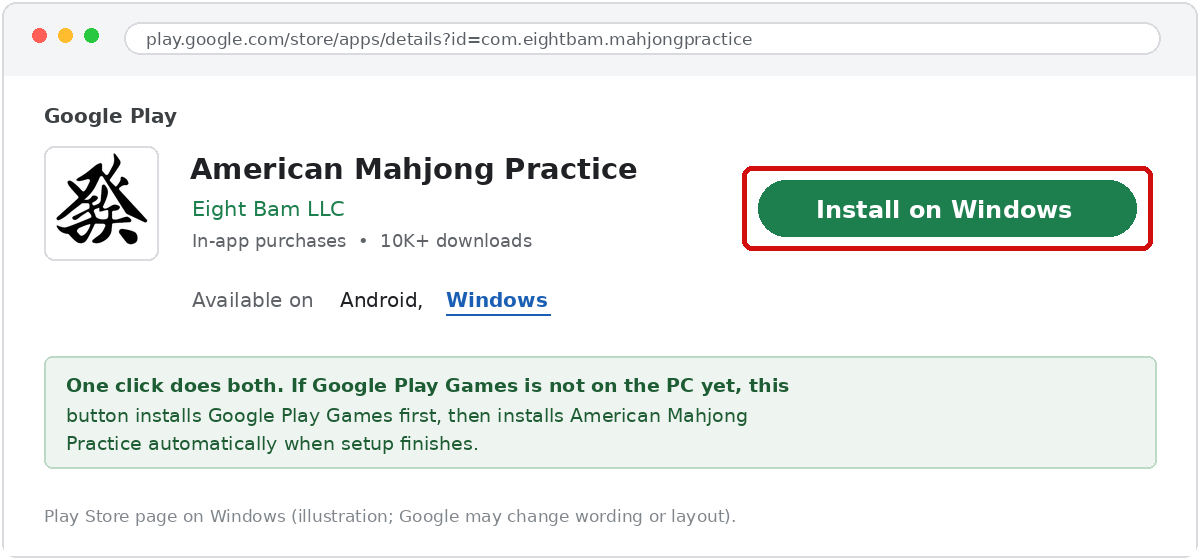
Click Install on Windows on the Play Store page
On the Windows computer, open this link in Chrome, Edge, or another browser: Google Play — American Mahjong Practice.
- Confirm the listing says American Mahjong Practice by Eight Bam LLC.
- Click Install on Windows. The Available on line also lists Windows, which confirms the game runs on a PC.
- If Google asks you to sign in, use a personal Google Account. Google Play Games on PC does not support every managed/work account.
Choose Open or Download
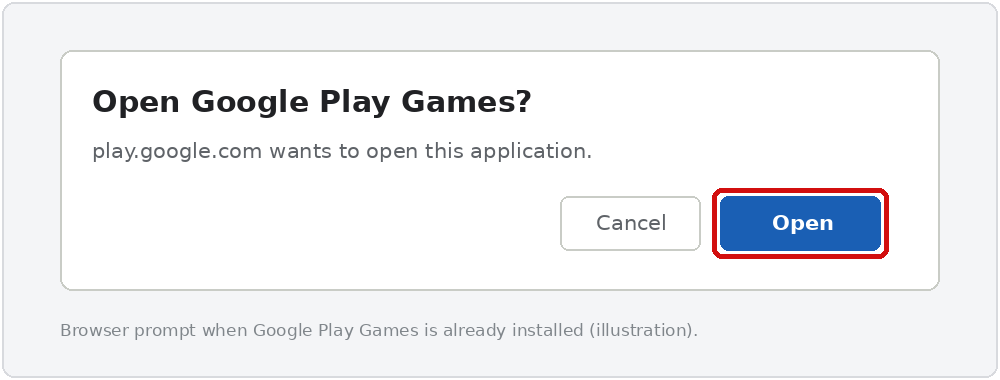
Google then asks whether to open or download the Google Play Games on PC client.
- Open — shown when Google Play Games is already installed. It opens the game’s page in Google Play Games and starts installing the game right away.
- Download — shown when Google Play Games is not installed yet. It downloads the Google Play Games installer, and once setup finishes, American Mahjong Practice starts installing on its own.
- Depending on the browser, you may first see a prompt asking whether to allow the site to open Google Play Games. Choose Open or Allow. Nothing will happen if this prompt is dismissed.
Let Google Play Games finish installing
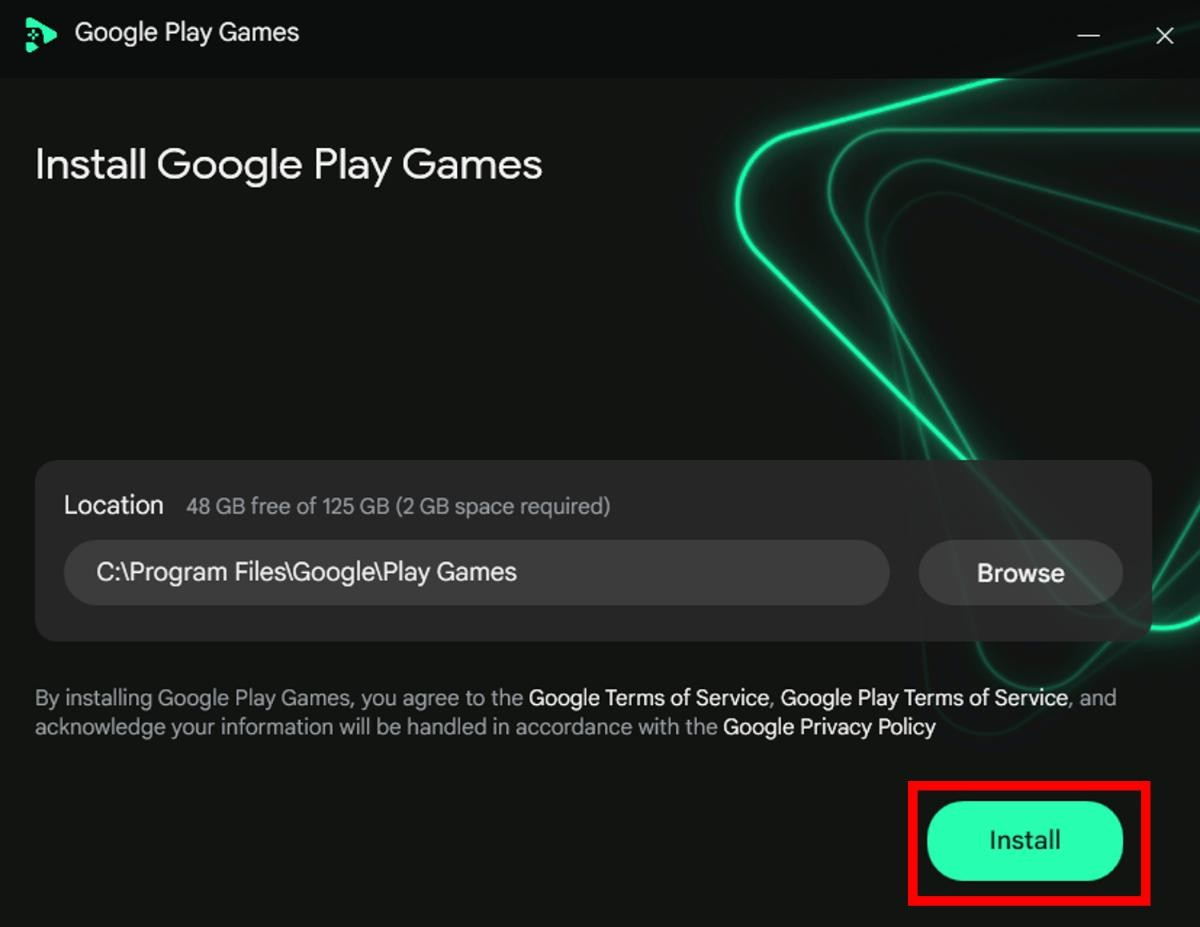
If you clicked Download, open the downloaded .exe file and click Install. Allow Windows to make changes if Windows asks for permission. Installation may take a few minutes. If the PC does not meet the minimum requirements, Google says so during installation and stops.
Sign in to Google Play Games
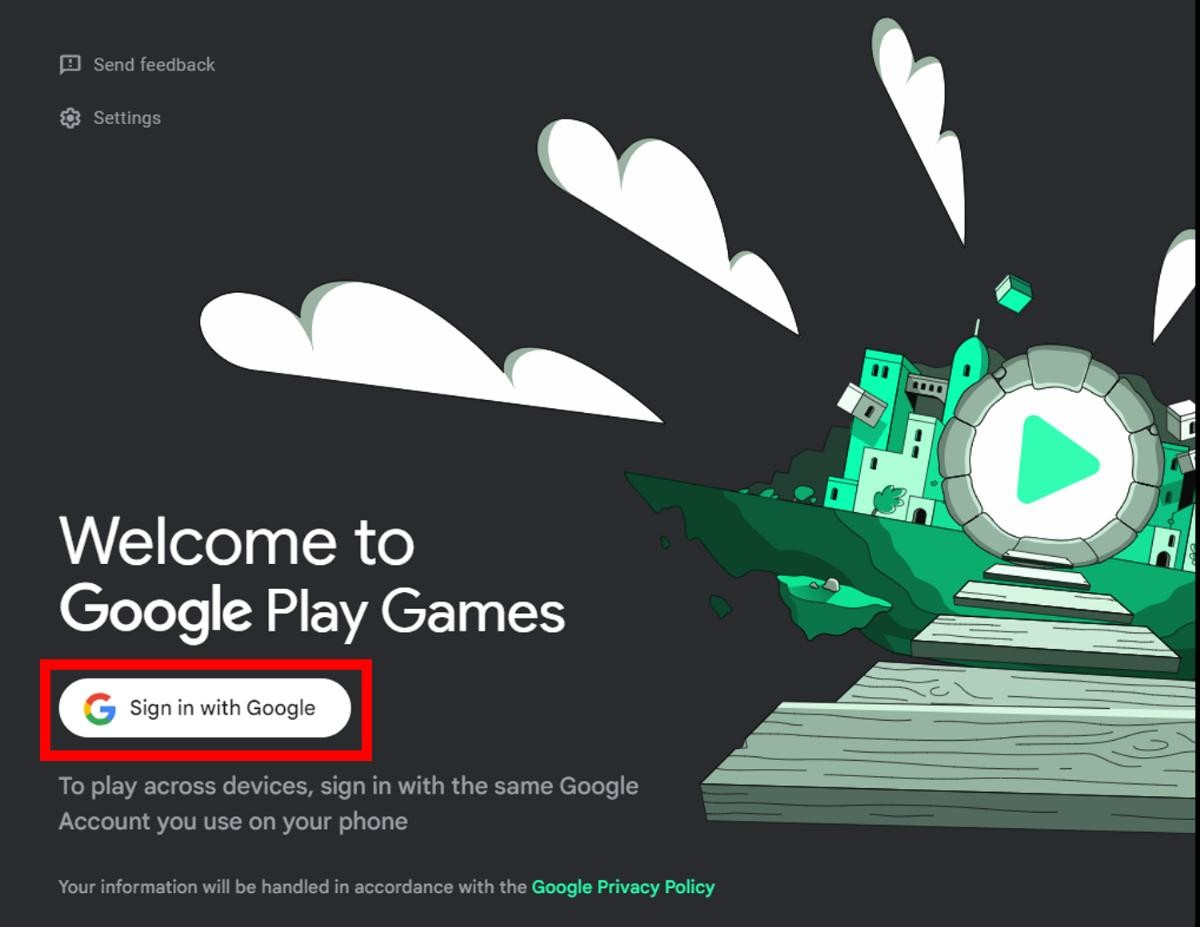
Open Google Play Games and click Sign in with Google. Use the Google Account you want associated with this Windows installation.
- If you already use American Mahjong Practice on Android, sign in with the same Google Account so an existing purchase can be restored.
- Google Play Games creates or uses a Play Games profile for that Google Account.
- Only the first Windows user account that installs Google Play Games can open it and play. Install it from the Windows account you actually play on.
Turn on virtualization if Windows asks
Google Play Games uses Windows virtualization to run Android games. If you see a virtualization prompt, choose Continue and allow Windows to enable the required feature. Restart the PC when requested.
- The feature Google commonly enables is Windows Hypervisor Platform.
- If Google still says virtualization is off after a restart, open Task Manager → Performance → CPU and check whether Virtualization says Enabled.
- If it says Disabled, virtualization must be enabled in the PC’s BIOS/UEFI. The setting is commonly called Intel VT-x, Intel Virtualization Technology, AMD-V, or SVM. The exact menu varies by computer manufacturer.
Open the app
When installation is complete, click Play or open American Mahjong Practice from the Windows Start menu. Google Play Games may also create a desktop shortcut.
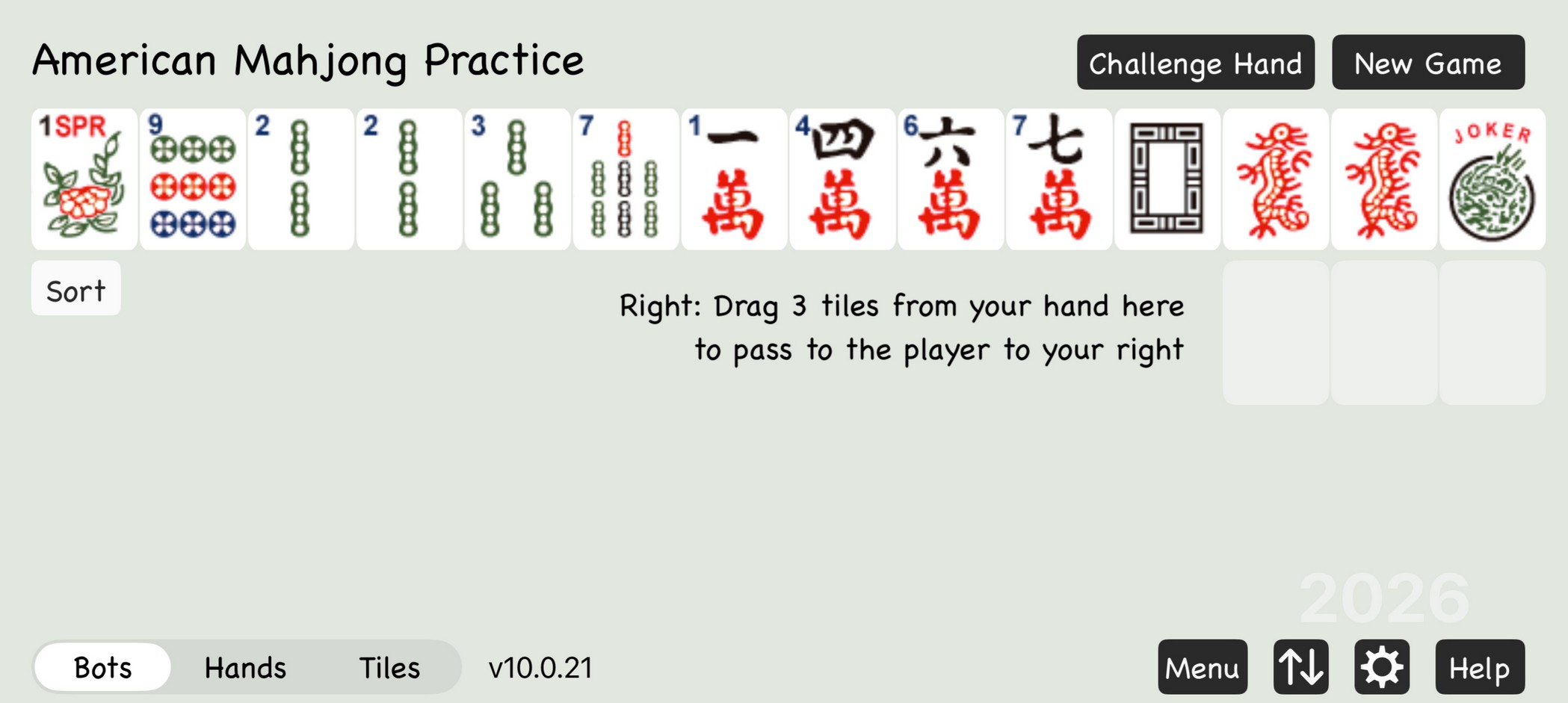
If the game did not install by itself
The one-click flow occasionally stops after Google Play Games is installed — usually because the browser prompt in Step 2 was dismissed. Install the game directly instead:
- Open Google Play Games and click Search.
- Search for American Mahjong Practice.
- Open the result published by Eight Bam LLC.
- Click Install, then wait for the download to finish.
You can also reach the client directly at play.google.com/googleplaygames if you would rather install Google Play Games first and search for the game afterwards.
Restore an existing purchase
If you already bought the 2026 hands on an Android phone or tablet, you do not need to buy them again on Windows.
- Sign in to Google Play Games with the same Google Account used for the Android purchase.
- Open American Mahjong Practice and open the purchase menu.
- Click Restore Purchases.
- If the purchase does not restore, verify the Google Account first, then contact android@eightbam.com.
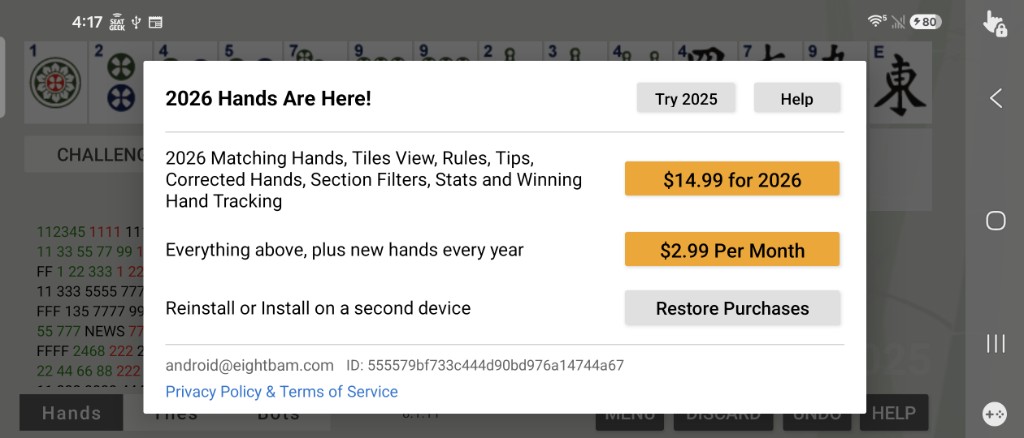
Purchases made on an iPhone or iPad cannot be restored on Windows. Apple and Google handle purchases through separate stores, and they do not transfer between them. To play on Windows, the hands must be purchased through Google Play. Questions: android@eightbam.com
Troubleshooting
- Nothing happens after clicking Install on Windows.
- The browser needs permission to hand the installation off to Google Play Games. Click Install on Windows again and choose Open or Allow when the browser asks. If the prompt still does not appear, install Google Play Games from play.google.com/googleplaygames and search for the game inside it.
- Google Play Games installed, but the game did not.
- Open Google Play Games, click Search, look up American Mahjong Practice by Eight Bam LLC, and click Install.
- “This PC does not meet the minimum requirements.”
- Run Windows Update and compare the PC against the requirements above. Two common causes are an SSD that is not the main drive, and signing in to Windows with an account that is not an administrator.
- Google Play Games asks to enable Windows Hypervisor Platform.
- Choose Continue, let Windows enable it, and restart the PC. This is normal.
- Virtualization is still disabled after restarting.
- Check Task Manager → Performance → CPU. If Virtualization is Disabled, enable Intel VT-x / AMD-V / SVM in BIOS/UEFI. Consult the PC manufacturer if you are not comfortable changing BIOS settings.
- Google Play Games will not open for a different Windows user.
- Only the first Windows user account that installed Google Play Games can open it and play games. Install it from the Windows account you play on.
- American Mahjong Practice does not appear in search.
- Open the Play Store listing and confirm the Available on line lists Windows. Also confirm Google Play Games is signed in to a personal Google Account with the Play country set to a supported country.
- The app installed, but a prior purchase is missing.
- Make sure Google Play Games is using the same Google Account that made the Android purchase, then use Restore Purchases in the app.
- The purchase was made on an iPhone or iPad.
- Apple purchases cannot be restored on Windows or Android. The hands must be purchased through Google Play to play on Windows.
- Installation fails with an error code.
- Google lists the installer error codes and fixes at support.google.com/googleplay/answer/15899477.
- Another Android emulator stopped working.
- Google notes that enabling Windows Hypervisor Platform can conflict with some other emulators. This guide uses Google Play Games as the supported Windows method.
Need help?
American Mahjong Practice support: android@eightbam.com
Google Play Games on PC help: support.google.com/googleplay/topic/13019131
Official links
- American Mahjong Practice — Google Play — play.google.com/store/apps/details?id=com.eightbam.mahjongpractice
- American Mahjong Practice — Google Play Games on PC listing — play.google.com/pc-store/games/details?id=com.eightbam.mahjongpractice
- Google Play Games on PC — download — play.google.com/googleplaygames
- Google: Install & set up Google Play Games on your PC — support.google.com/googleplay/answer/11358888
- Google: Check if your PC can run Google Play Games on PC — support.google.com/googleplay/answer/11358071
- Google: Fix installation errors with Google Play Games on PC — support.google.com/googleplay/answer/15899477
- Eight Bam installation page — eightbam.com/android
Interface screenshots are examples and may not match the latest Google layout exactly. The installation instructions and system requirements in this guide were checked against Google’s current documentation in August 2026.